FTP/SSH
File Explorer / File Manager
SSH access
Where do I find user information for FTP?
How do I transfer files to web hosting/the domain with an FTP program?
Transferring files with FileZilla
Transferring files with WinSCP
Transferring files with Windows Explorer
File Explorer (File Manager)
You can easily manage files and folders, as well as delete and upload files, via File Explorer or File Manager.
- Log in to https://my.servetheworld.net
- Click on Products
- Click on My Products
- Click on Manage next to the relevant web hosting
- Click on Plesk
- Click on Files in the menu on the left
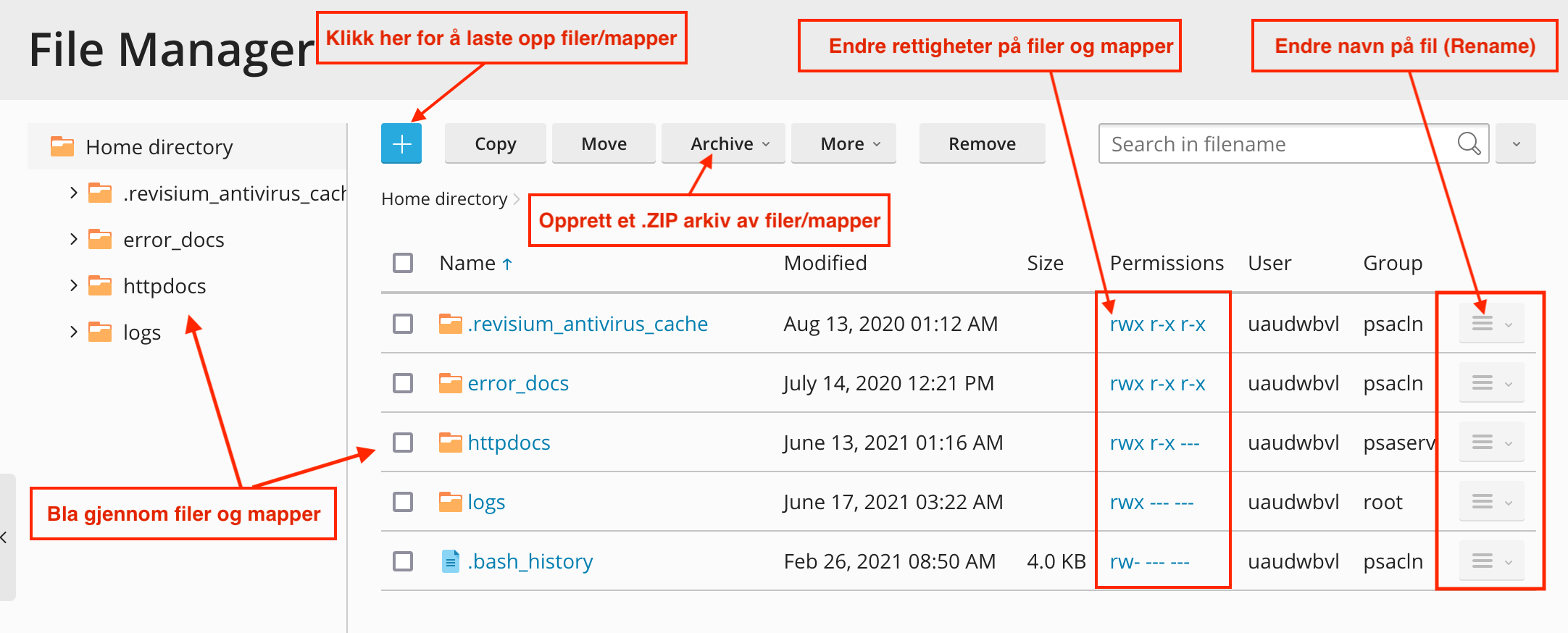
SSH access to your hosting account
Please note that SSH access is included in specific hosting packages and provides a restricted shell environment with limited tools, rather than full root access.
- Log in to https://my.servetheworld.net
- Click on Products
- Click on My Products
- Click on Manage next to the relevant web hosting
- Click on Plesk
- Find the relevant domain name
- Click on Hosting under Hosting/DNS
- Ensure that the field SSH access is set to /bin/bash (chrooted)
- Note your system user; see the Username field in System user's credentials.
- Change the password for the system user; see the Password field in System user's credentials. - Save changes by clicking SAVE
To connect, use your domain name or the hosting account's IP address as the hostname via the standard port 22.
See also: Guide for logging in via SSH
SSH access is ready immediately, and you can log in using your domain name as the SSH server address.
Where do I find user information for FTP?
- Log in to https://my.servetheworld.net
- Click on Products
- Click on My Products
- Click on Manage next to the relevant web hosting
- Click on FTP Access
- Click on Create FTP account to create a new FTP account, or edit the password for an existing FTP user by clicking Edit.
The FTP server is the same as your domain name. Alternatively, you can use the server name, e.g., ftp.yourdomain.com – replace yourdomain.com with your own domain name.
You should now have the user information required to connect to the FTP server to transfer your data/website:
- Domain name or IP address (The FTP program you use may use different terms for server, such as hostname, host, or server name)
- Username
- Password
- Port number 21
How do I transfer files to the web hosting/domain/web folder with an FTP program?
FileZilla
Before you begin, you must know the server name or IP address of the FTP server, as well as the FTP username and password.
- Download and install the FileZilla client from https://filezilla-project.org/
- Start the FileZilla program. You should now see the following screen:
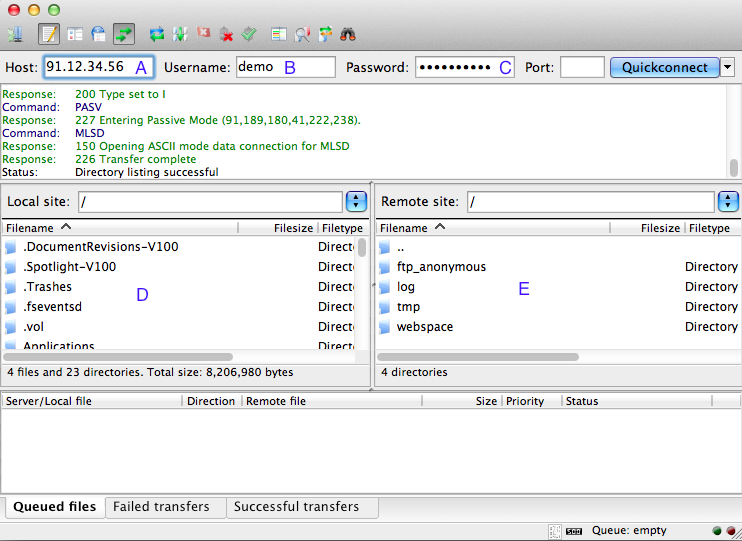
| Item | Description |
|---|---|
| A | Enter the hostname, server name, or IP address here. |
| B | Enter the FTP username (FTP Login) here. |
| C | Enter the FTP password here. |
| D | The file structure on your local computer. |
| E | The file structure on the web area/web hosting (Files and folders are published in /domain-name/public_html). |
To transfer files, you can simply "drag" the file(s) or folder(s) from your computer (section D) over to the web hosting (section E). Transfers can be performed both ways – from the web hosting to your computer (e.g., if you want to retrieve a copy of the content).
WinSCP
Before you begin, you must know the server name or IP address of the FTP server, as well as the FTP username and password.
- Download and install the WinSCP program from https://winscp.net/eng/download.php
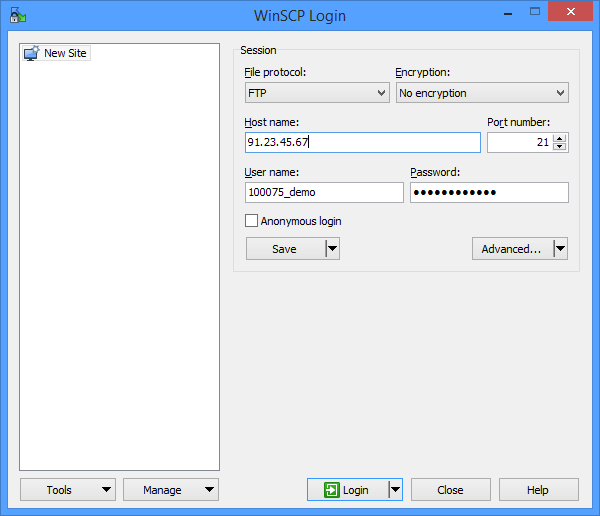
- Start the WinSCP program.
- Click Login.
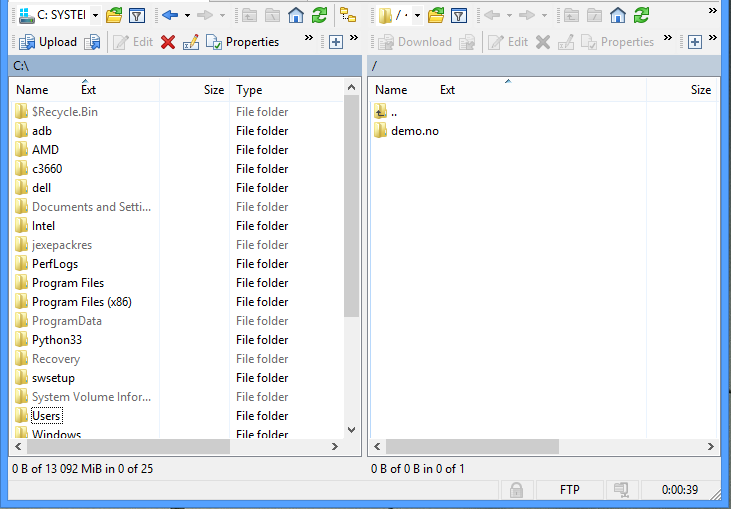
- If the login is successful, you will be met with the screen below:
- The file structure on the left side is the content on your computer.
- The file structure on the right side is the content on the web account.
- Content is published in /domain-name/public_html (in this example, you click on the folder yourdomain.com and then the folder public_html).
To transfer files, you can simply "drag" the file(s) or folder(s) from your computer (left field) over to the web hosting (right field). Transfers can be performed both ways, i.e., from the web hosting to your computer (e.g., if you want a local backup of the content).
| The image below shows an example of which fields to fill out | Click on the folder with your domain name to publish files |
|---|---|
 |
 |
Windows Explorer
Before you begin, you must know the server name or IP address of the FTP server, as well as the FTP username and password.
- Go to Start -> My Computer
- Alternatively, press the Windows key + E.
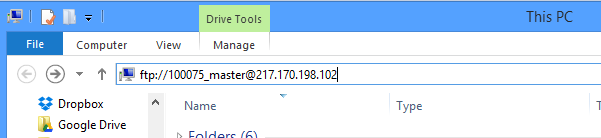
- Fill in the FTP details in the address bar as shown in the screenshot below:
- Alternatively, use e.g., ftp://server-name-for-FTP or ftp://ip-address-for-FTP.
- Then press the Enter key.
- Fill in your FTP username and password.
- Then click Log On.
- If you receive an error message, try again from step 2.
- If the login is successful, you will see the folder with your domain name.
Click on the folder with your domain name and then public_html – this is where you should publish your files or copy files from the web hosting to your computer.