---
title: PHP
url: 'https://faq.servetheworld.net/myserve/en/webhotell/php-version'
markdown: 'https://faq.servetheworld.net/myserve/en/webhotell/php-version.md'
lang: en
date: '2026-09-17'
description: 'Here you will find information about PHP, how to change the PHP version, and troubleshooting Change PHP version Where can you find phpinfo() ? Custom PHP environment (php.ini) Change PHP version If your website does not function correctly after the change, you must revert to the pre…'
taxonomy:
category:
- docs
---
[](#)- [Norsk](https://faq.servetheworld.net/myserve/no/webhotell/php-version)
- [English](https://faq.servetheworld.net/myserve/en/webhotell/php-version)
[ STW Knowledge Base ](https://faq.servetheworld.net/myserve/en) [ Web hosting ](https://faq.servetheworld.net/myserve/en/webhotell) PHP
# PHP
> > > Here you will find information about PHP, how to change the PHP version, and troubleshooting
[Change PHP version](#endre-php-versjon)
[Where can you find phpinfo() ?](#phpinfo)
[Custom PHP environment (php.ini)](#tilpasset-php-milj%C3%B8-php-ini)
#### Change PHP version
If your website does not function correctly after the change, you must revert to the previous version and notify your developer that the upgrade failed.
1. Log in to
2. Click on **Products**
3. Click on **My Products**
4. Click on **Manage** next to the relevant web hosting
5. Click on **Plesk**
6. Find and click on the relevant domain name in **Websites & Domains**
7. Click on the icon named **PHP**
8. Change to the desired version and click OK to save the change.
| | |
|---|---|
| [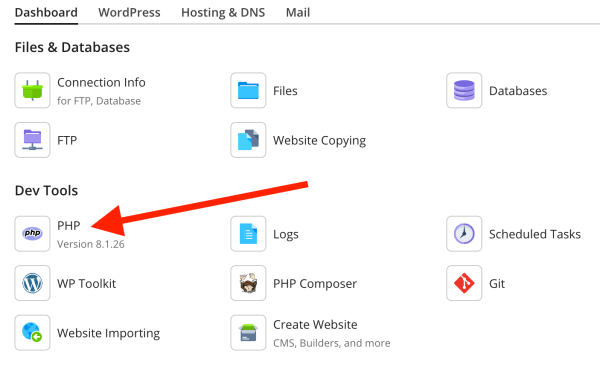](https://faq.servetheworld.net/myserve/images/5/1/9/7/f/5197fb42d9b5e712fc0a64f66d0fb8b9cc9c77a9-pleskwebsitephpicon.png) | [](https://faq.servetheworld.net/myserve/images/d/0/5/d/8/d05d8eadf9cc42e37d68216824624e4d3cc3bd10-plesk-php-select.png) |
#### Where can you find phpinfo() ?
1. Log in to
2. Click on **Products**
3. Click on **My Products**
4. Click on **Manage** next to the relevant web hosting
5. Click on **Advanced Settings** 6. Find and click on the relevant domain name
6. Click on **PHP Settings**
7. Click on **View the phpinfo() page** to display details about the PHP environment for your website
#### Custom PHP environment (php.ini)
You can change certain PHP settings exclusively for your website. This involves publishing a file named **.user.ini** in the web folder of your domain name, e.g., via FTP.
In the example below, we show how to increase the upload limit in PHP for your website.
1\) Open a text program, e.g., Notepad, on your computer.
2\) Enter the following or copy/paste:
```
upload_max_filesize = 128M;
post_max_size = 128M;
```
The values above set a custom upload limit of 128 MB; set another desired size if needed. A list of php.ini directives is available at
3\) Save the file on your computer (note both periods in the filename):
```
.user.ini
```
4\) Upload the file via FTP into the relevant domain folder.
5\) Verify the changes by checking phpinfo(), see [Where can you find phpinfo() ?](#phpinfo)
[ ](https://faq.servetheworld.net/myserve/en/webhotell/databases) [](https://faq.servetheworld.net/myserve/en/domener)
---
## Navigation
- Parent: [Web hosting](https://faq.servetheworld.net/myserve/en/webhotell.md)
- Previous: [Databases](https://faq.servetheworld.net/myserve/en/webhotell/databases.md)
- Next: [Backup](https://faq.servetheworld.net/myserve/en/webhotell/webhotell-backup.md)