Create Certficate Signing Request (CSR)
Create a CSR with OpenSSL
Create a CSR on Windows Server and IIS (Internet Information Services)
Create a CSR with OpenSSL
Below is a guide on how to create a Private Key and a CSR (Certificate Signing Request).
Remember to back up the Private Key. If the key is lost, you can no longer use the issued certificate.
- Log in to the server via SSH (or a PC with OpenSSL installed).
- Run the following command to generate a private key and CSR.
openssl req -out CSR.csr -new -newkey rsa:2048 -nodes -keyout PrivateKey.key

(you can replace CSR.csr with <domainname>.csr and PrivateKey.key can be replaced with <domainname>.key)
- In the command line, fill out the form. Example:
|
|
| Country Name (2 letter code) |
NO |
| State or Province Name (full name) |
OSLO |
| Locality Name (eg, city) |
OSLO |
| Organization Name (eg, company) |
Servetheworld |
| Organizational Unit Name (eg, section) |
HQ |
| Common Name (eg, fully qualified host name) |
www.servetheworld.net or servetheworld.net (*.demo.no for a Wildcard certificate) |
| Email Address |
your-address@servetheworld.net |
- The CSR and private key files should now be created.
- You can now use your newly created CSR when ordering an SSL certificate at https://my.servetheworld.net
Create a CSR on Windows Server and IIS (Internet Information Services)
- Log in as Administrator on the Windows Server
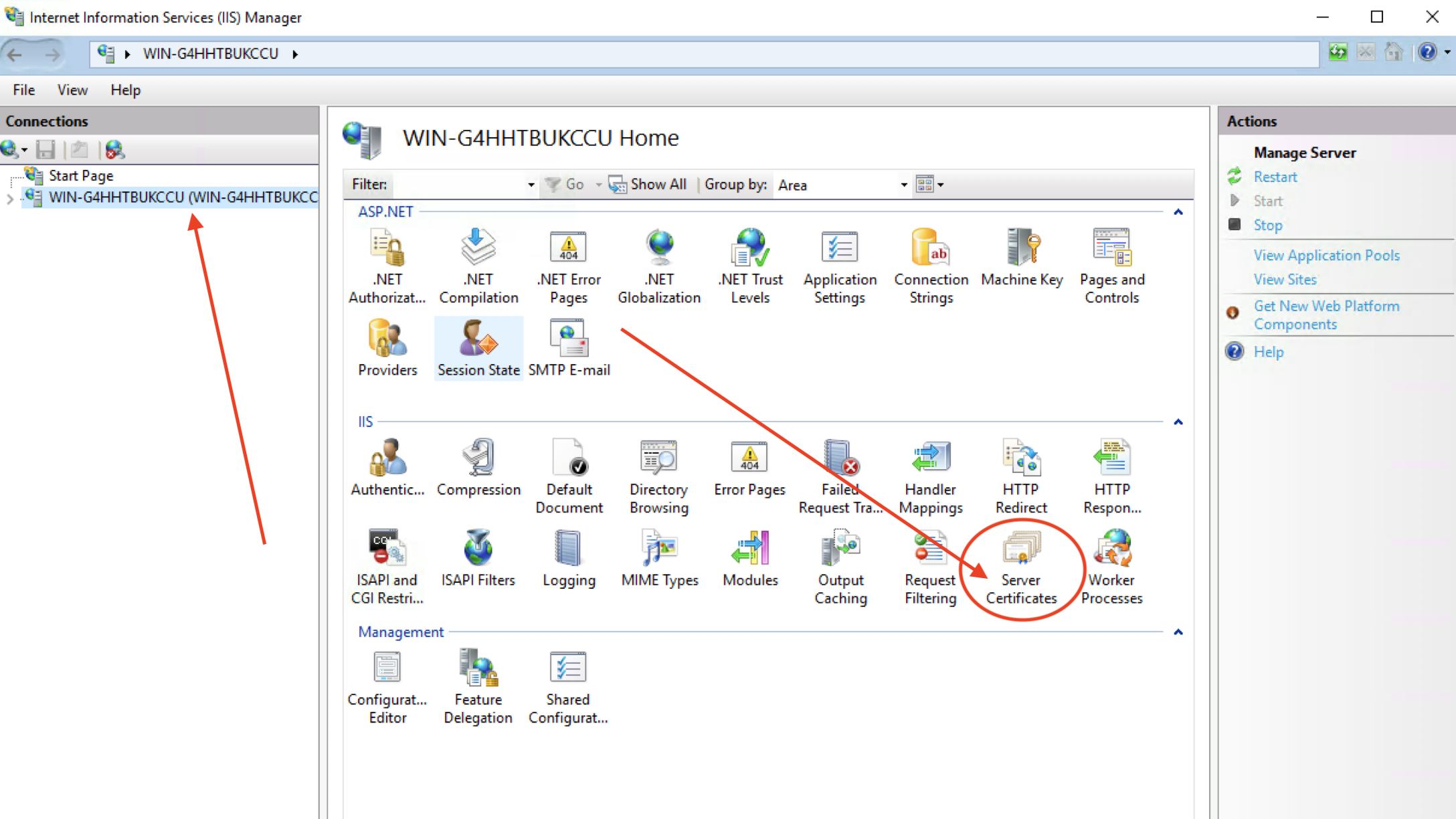
- Select Start, Run (or Windows key + R), enter inetmgr and run it.
- Click the server name under Connections, then double-click Server Certificates
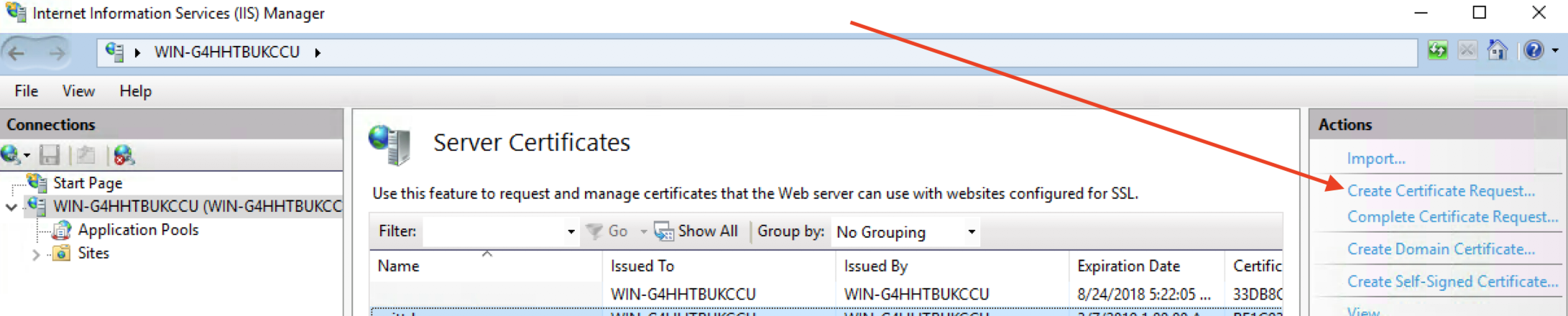
- Under Actions, click Create Certificate Request
- Fill out the form that appears in a new window and click Next
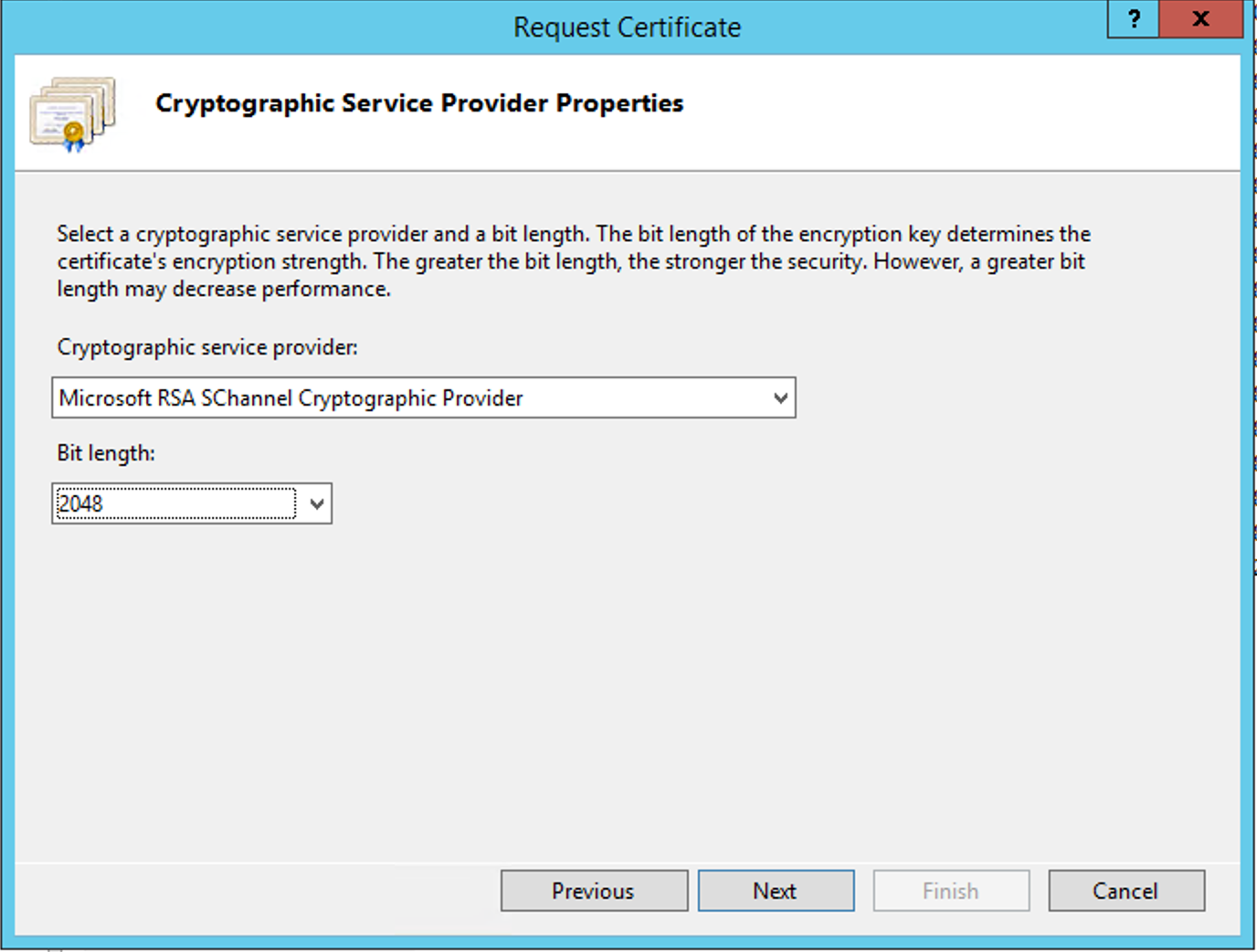
- Select Microsoft RSA Schannel and a minimum of 2048 bits, then click Next
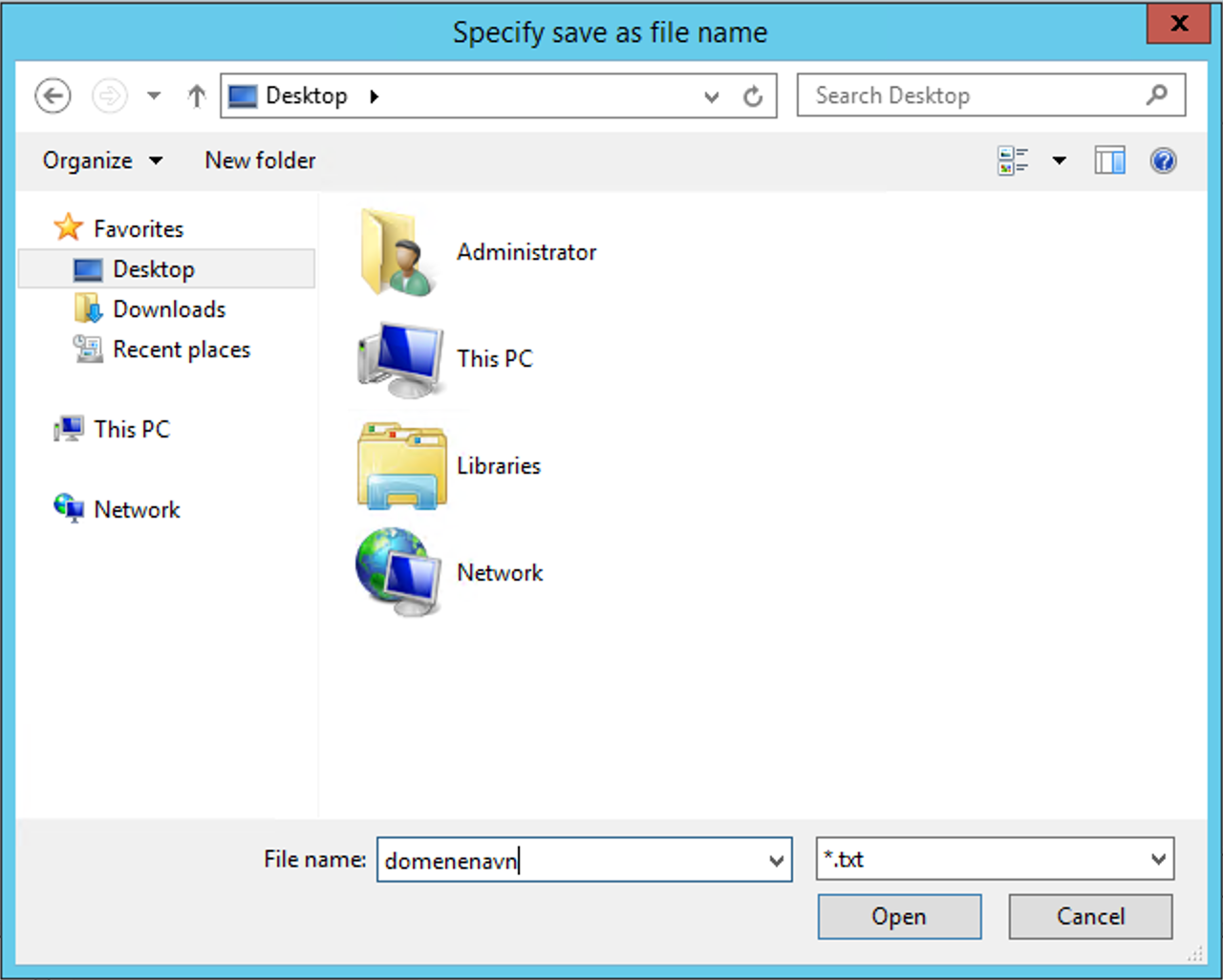
- Specify the path to save the CSR, or click More options (three dots)
- Choose a folder and enter the file name, e.g. the domain name, then click Open.
- If you are satisfied with the file path, click Finish
- Your CSR is now saved at the specified path and you can use the CSR to order/configure an SSL certificate at https://my.servetheworld.net