Install app with Softaculous
Softaculous lets you install apps like WordPress and others with just a few clicks in the control panel.
Install WordPress with Softaculous
- Log in to https://my.servetheworld.net/
- Click on Products
- Click on My Products
- Click Manage for the relevant web hosting plan
- Click Advanced settings (a new tab will now open in your browser)
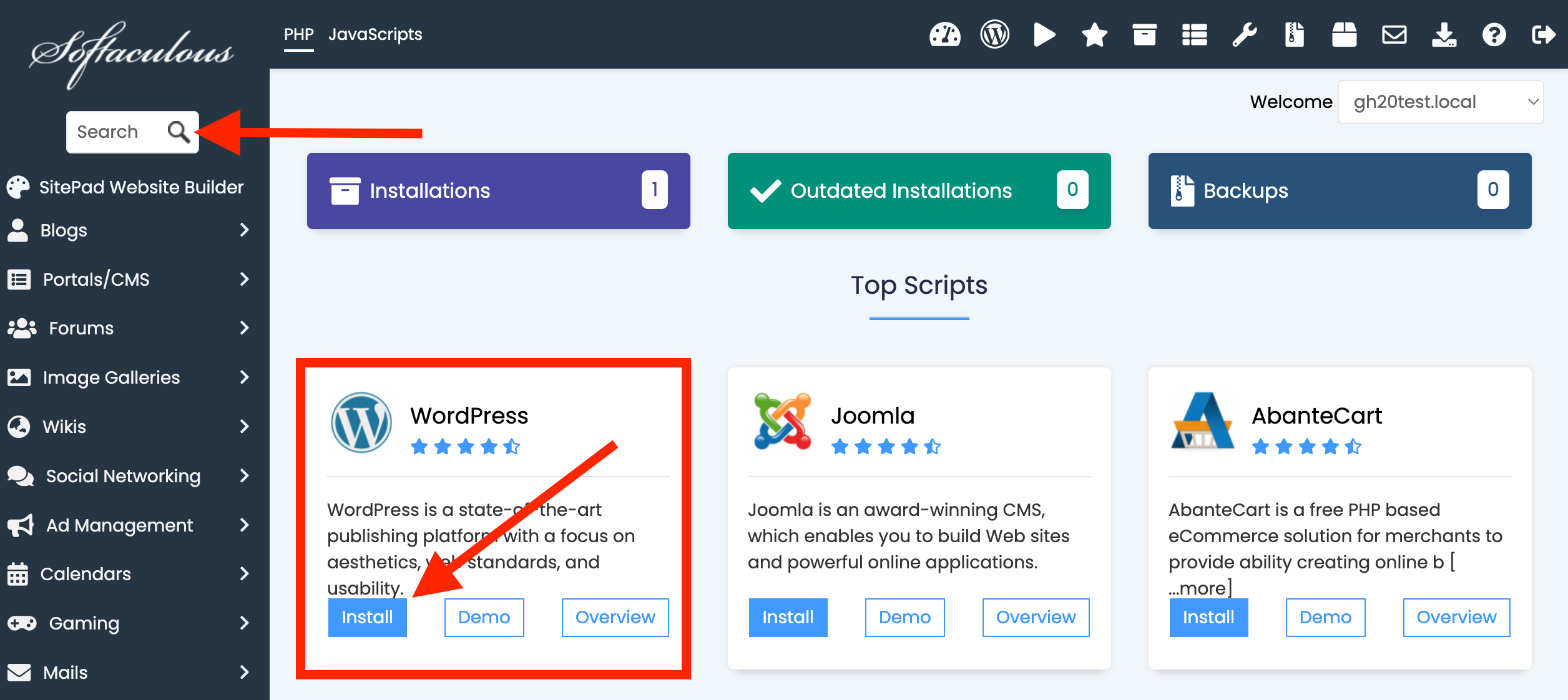
- Click Softaculous on the left
- Click INSTALL on WordPress (if you can’t find WordPress, you can use the search function on the left).
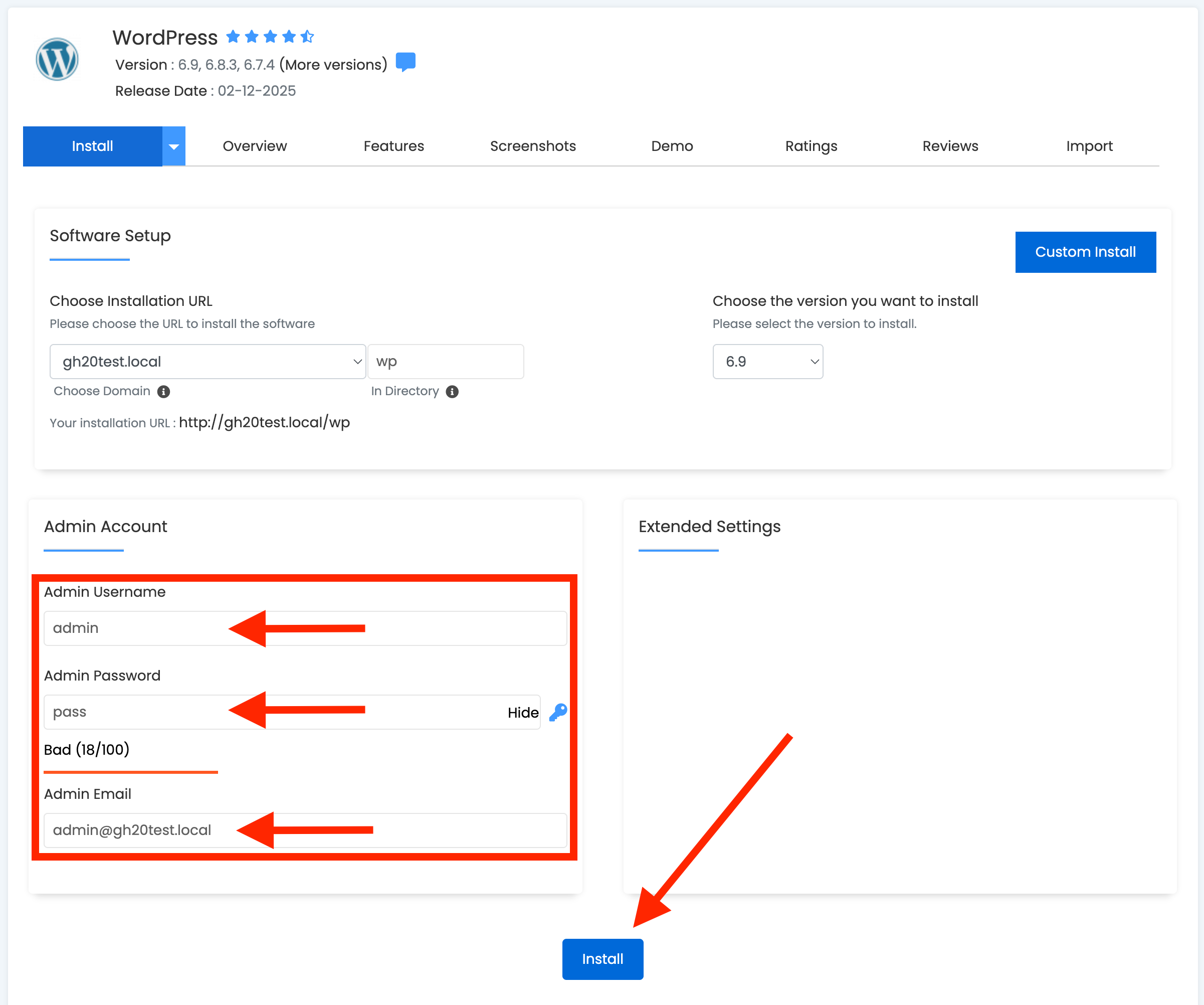
- Select the domain and click QUICK INSTALL
- Enter a username, password, and email address for your WordPress website. Remember to write down your username and password, as you will need them to log in to your WordPress.
- Click the INSTALL button
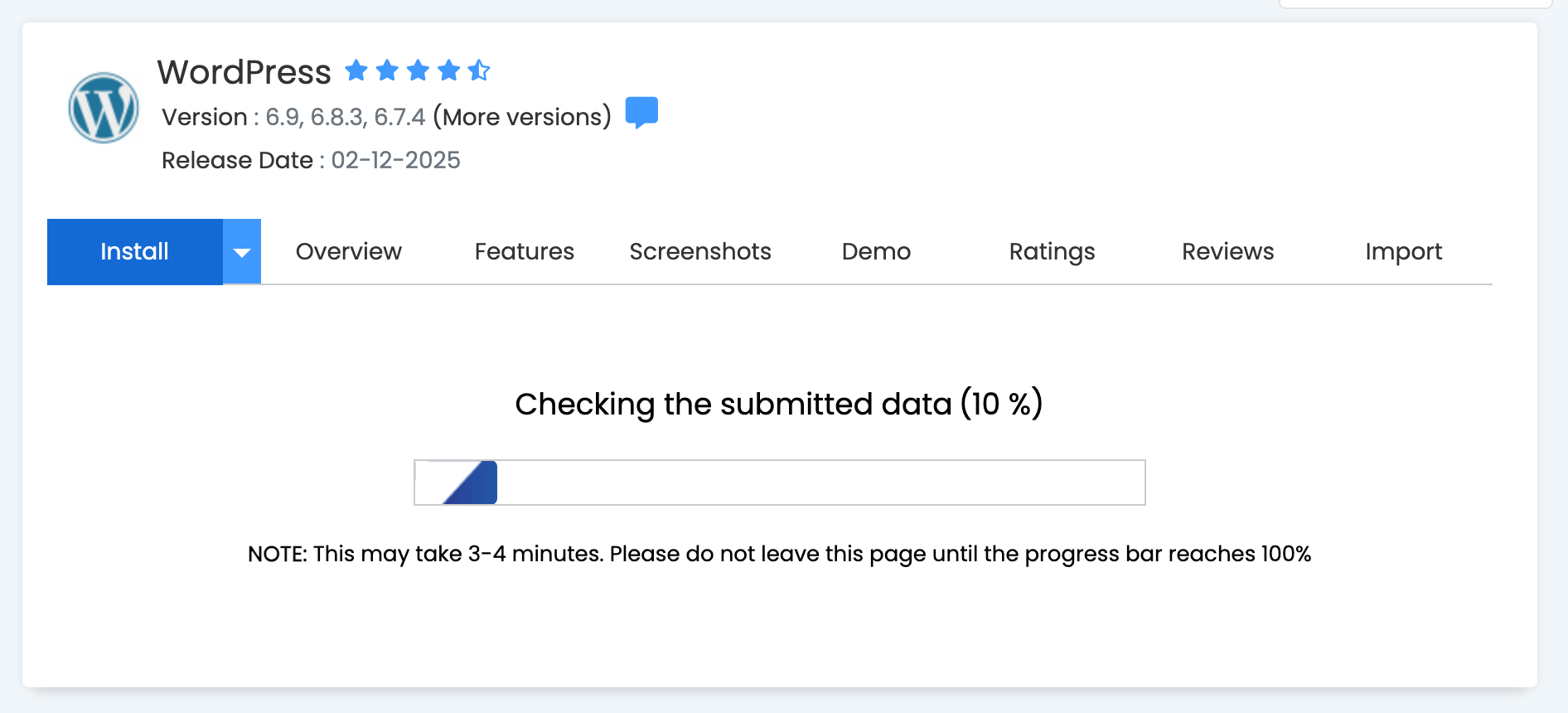
- WordPress will now be installed on your domain name and will be ready shortly.
- Write down your administrative URL and log in to WordPress using your username and password.