PHP
Here you will find information about PHP, how to change the PHP version, and troubleshooting
Change PHP version
Where can you find phpinfo() ?
Custom PHP environment (php.ini)
Change PHP version
If your website does not function correctly after the change, you must revert to the previous version and notify your developer that the upgrade failed.
- Log in to https://my.servetheworld.net/
- Click on Products
- Click on My Products
- Click on Manage next to the relevant web hosting
- Click on Plesk
- Find and click on the relevant domain name in Websites & Domains
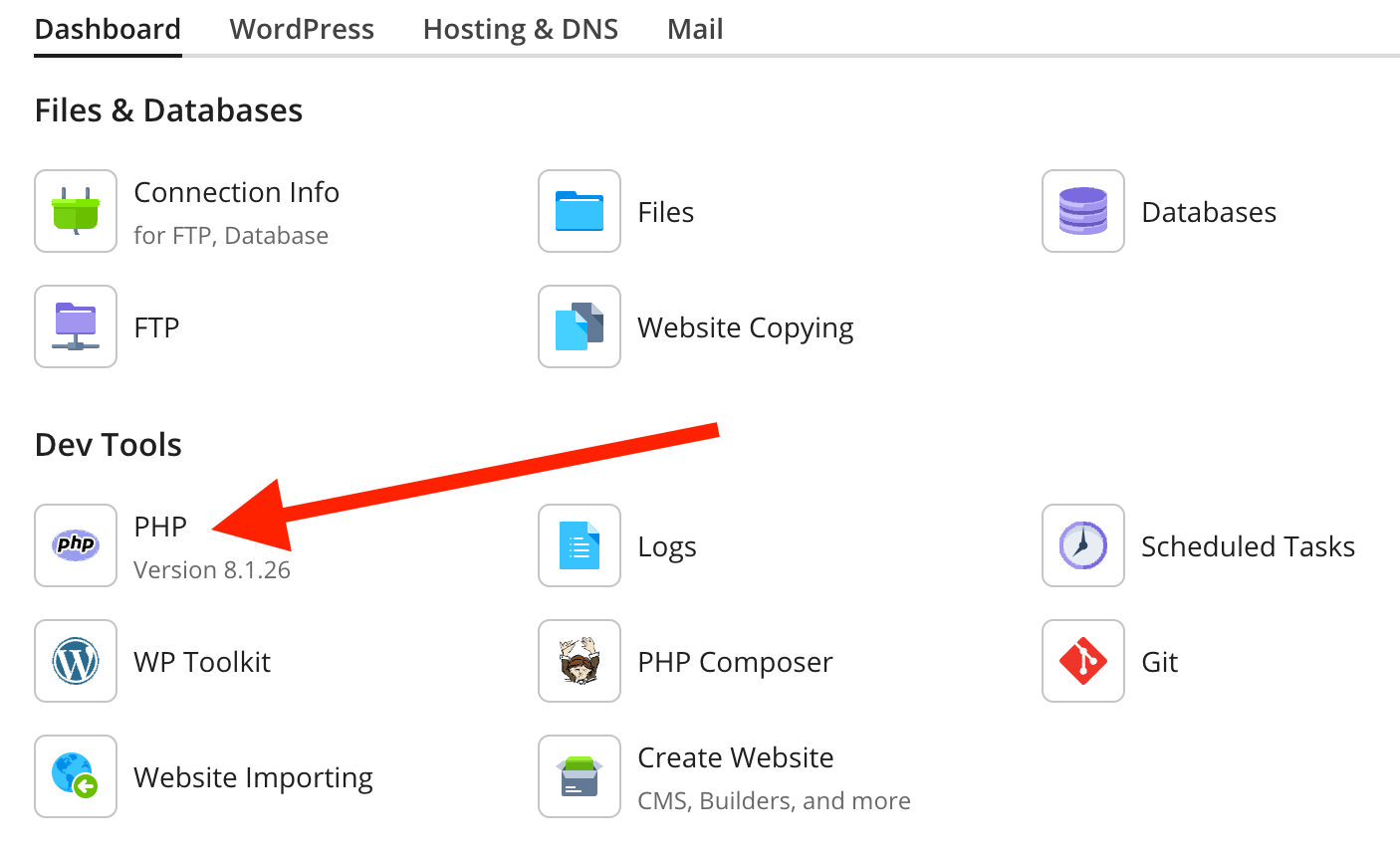
- Click on the icon named PHP
- Change to the desired version and click OK to save the change.
 |
 |
Where can you find phpinfo() ?
- Log in to https://my.servetheworld.net/
- Click on Products
- Click on My Products
- Click on Manage next to the relevant web hosting
- Click on Advanced Settings 6. Find and click on the relevant domain name
- Click on PHP Settings
- Click on View the phpinfo() page to display details about the PHP environment for your website
Custom PHP environment (php.ini)
You can change certain PHP settings exclusively for your website. This involves publishing a file named .user.ini in the web folder of your domain name, e.g., via FTP.
In the example below, we show how to increase the upload limit in PHP for your website.
1) Open a text program, e.g., Notepad, on your computer.
2) Enter the following or copy/paste:
upload_max_filesize = 128M;
post_max_size = 128M;
The values above set a custom upload limit of 128 MB; set another desired size if needed. A list of php.ini directives is available at http://php.net/manual/en/ini.list.php
3) Save the file on your computer (note both periods in the filename):
.user.ini4) Upload the file via FTP into the relevant domain folder.
5) Verify the changes by checking phpinfo(), see Where can you find phpinfo() ?